Looking to replace Microsoft Project Online? Join our webinar – MSP to Primavera – to explore your options
RPC Logo Close Menu Icon
Cart Contact Us

Primavera P6 Professional

Online Training Environment Access Instructions

Preparing for your course


Preparing for your course Section

Please take some time in the week before your course to make sure that you can access the training environment and that you have the necessary software and hardware to get the most out of your learning with RPC.

Online Training Environment


Online Training Environment Section

This document contains detailed instructions for accessing our online training environment. Please follow these steps and test a few days before the course commences to ensure that you have the necessary access to P6 Professional and our training environment.

If you have any difficulties in gaining access, please raise a ticket with our Support Desk by emailing support@rpc.uk.com.

Hardware and Software Requirements


Hardware and Software Requirements Section

RPC’s online training courses are delivered over Microsoft Teams. If you do not currently have Teams installed on your machine, you can download it from the Microsoft website via this link https://www.microsoft.com/en-gb/microsoft-teams/group-chat-software

You will require a microphone to communicate with the trainer. A camera is not essential, but is preferred.

If possible, we recommend that you have two screens available to you during the course. This will give you the best possible learning experience, with visibility of your own P6 window, the course instructor and their shared screen, and also the Course Companion pdf you will be sent. Your course companion can be viewed on a tablet if you do not have access to a second monitor.

Follow the instructions below:

01

Step 1

1. From your Windows operating system, open a browser. In this example we utilise Microsoft Edge, but other browsers such as Chrome, Firefox and  Safari would suffice.


2. We advise you open the  browser in an InPrivate window or Incognito tab as shown in these examples for Microsoft Edge and Chrome. In Edge click on the 3 dots icon and select New InPrivate window.


3. In Chrome select the three dots and select New Incognito Window.

02

03

Step 2

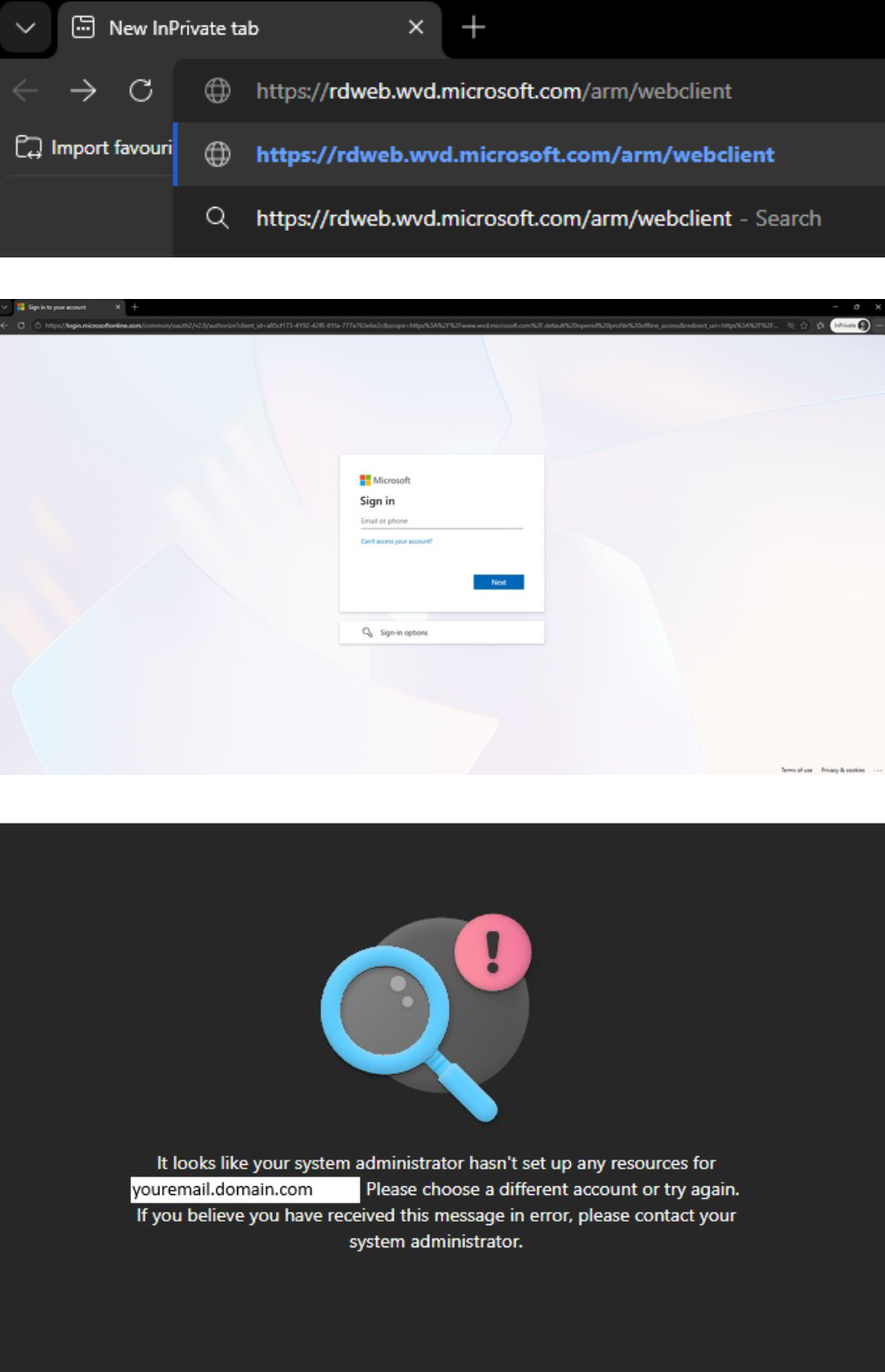
1. Type or copy and paste the following URL https://rdweb.wvd.microsoft.com/arm/webclient into your address bar to access the RPC Online Training Login page.


2. You will be presented with the Microsoft Sign in page, as per example.


Please note, if you haven’t opened a private browser tab and you already utilise Office 365, you may already be signed in under your Microsoft account.


In this case, it will show a message as shown.


Please make sure you have Selected a private tab as advised above.


04

01

Step 3

1. Prior to the course you will be separately provided your RPC Training credentials.


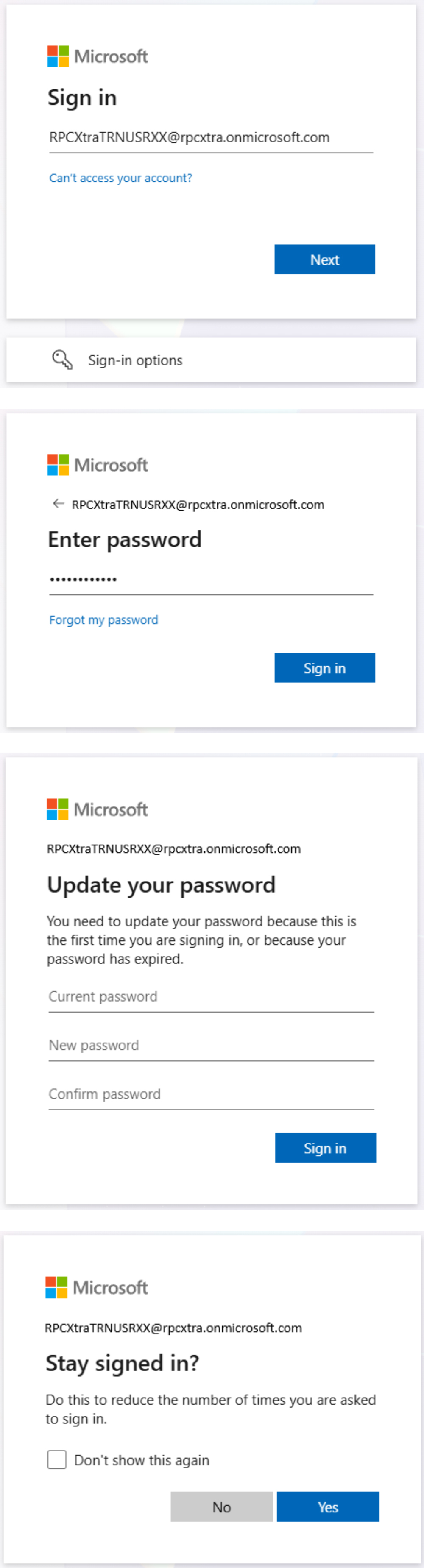
Log in with your Username, where “XX” in this example equals the number of your provided login. Then click Next.


2. Enter the password provided to you and click Sign in.


3. You will then be asked to set a new password for the account. This can be set to your personal preference and will last for the duration of the course.


Please ensure you can remember the password you set and save it somewhere secure for the duration of the course.


If you forget your password, you will be unable to access the Primavera training environment until your account has been reset by an Administrator, and this will cause delay.


4. You may be given the option to reduce the number of times you are asked to sign in. You can click Yes on this if you wish.

02

03

Step 4

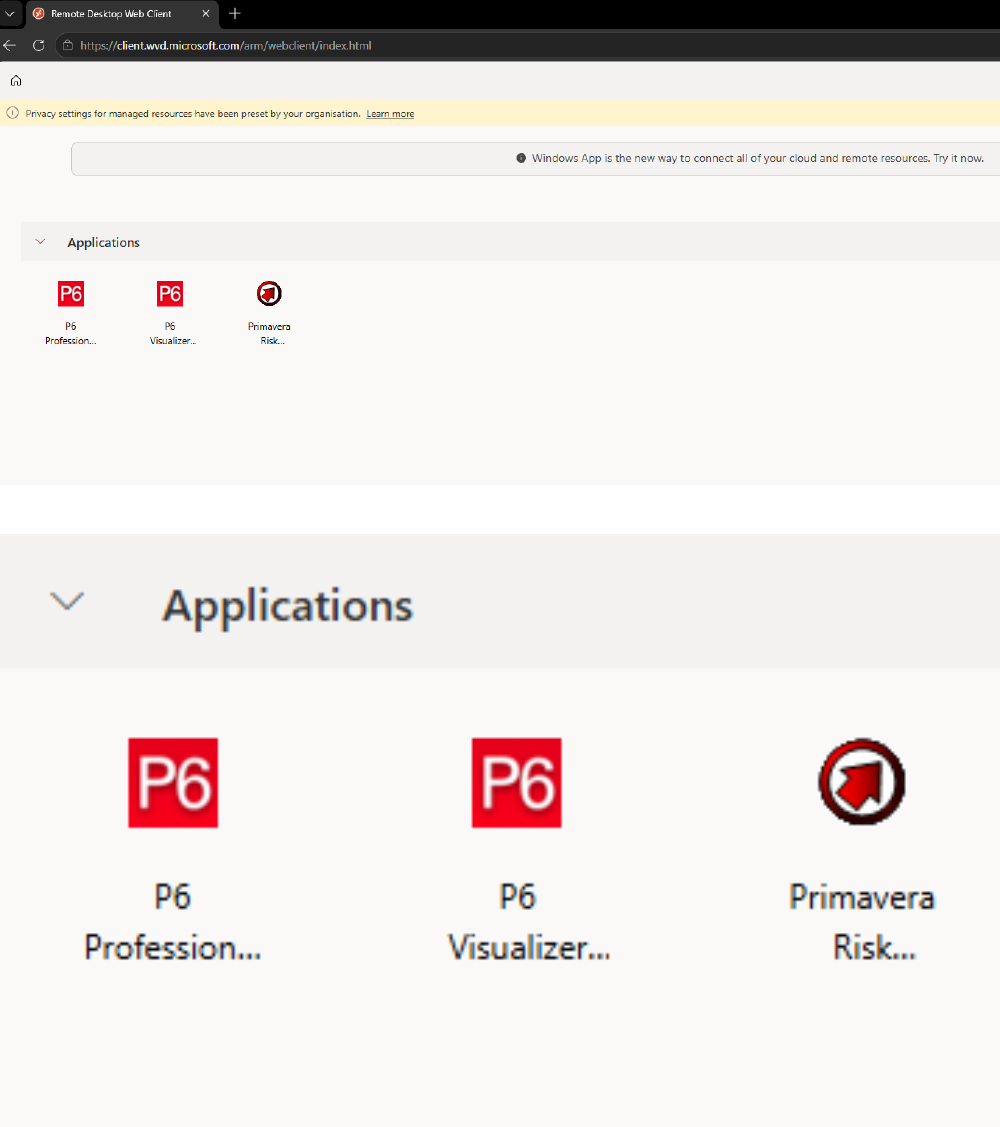
1. Once logged in, you will be presented with the following screen.


2. Select and click once on the P6 Professional application icon.

04

01

Step 5

You will then be prompted to re-enter your provided RPC Training credentials.


Remember to use the password you set up earlier and that the “XX” in the example shown here equals the number of your provided login.


Once complete, click Submit.


2. Please allow the application time to launch.


Depending on your internet connection, this may take a few moments to complete.

02

03

Step 6

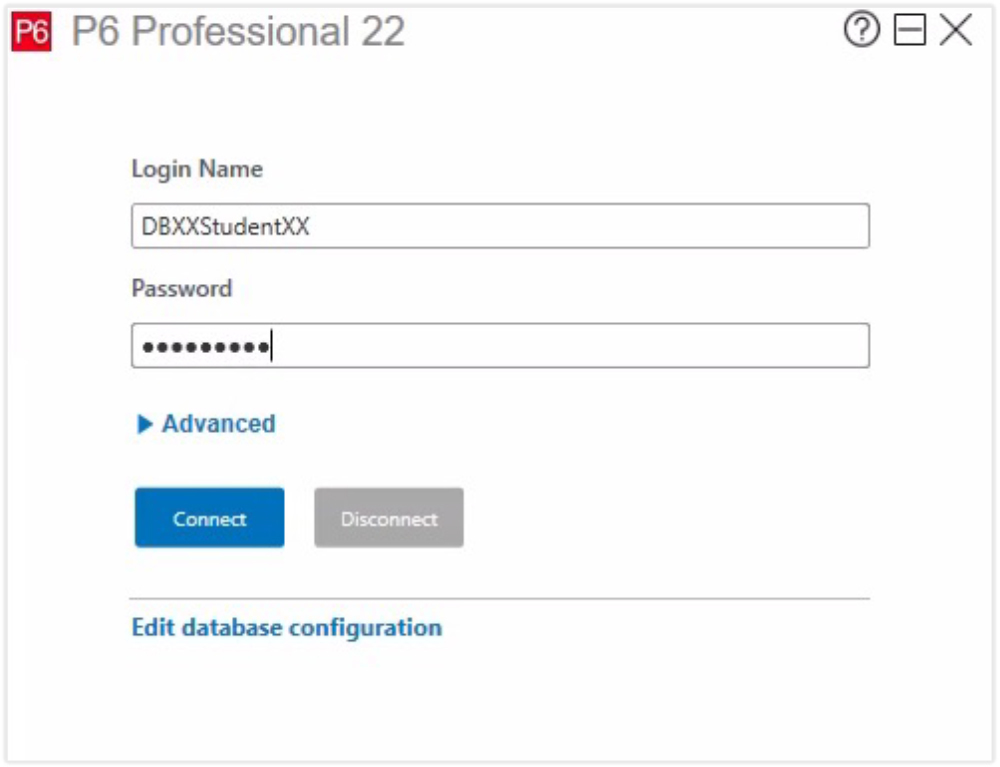
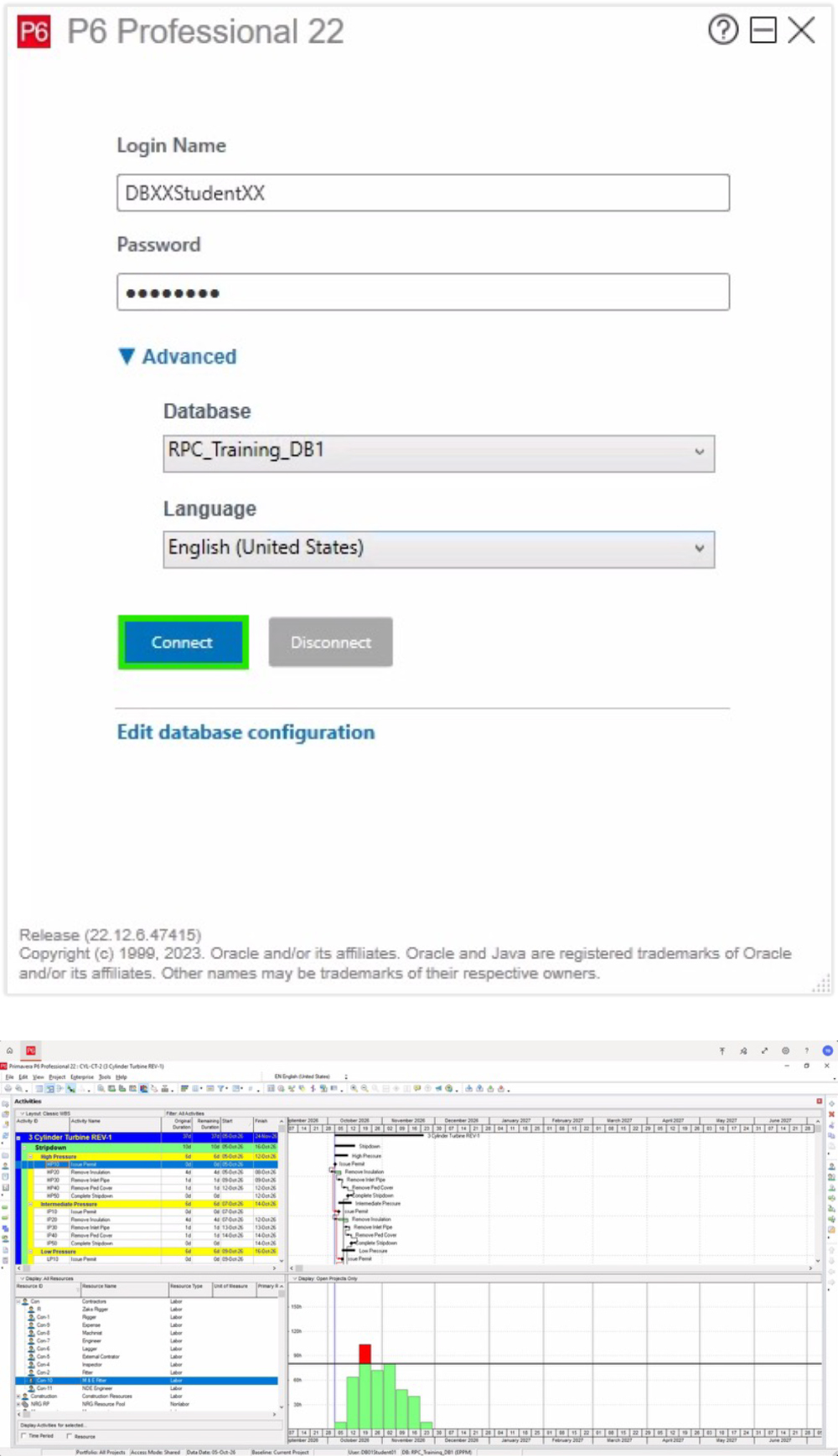
1. The P6 Professional Application will launch as shown.


Enter the Primavera login credentials you were provided by the RPC team.


“XX” in the example here equals the numbers of your provided login. For example: DB02Student03.


Please note that the required credentials here are different from the first set of credentials used to sign in to the training environment in steps 3 and 5


This time, you are signing in as a P6 Professional User.

04

01

Step 7

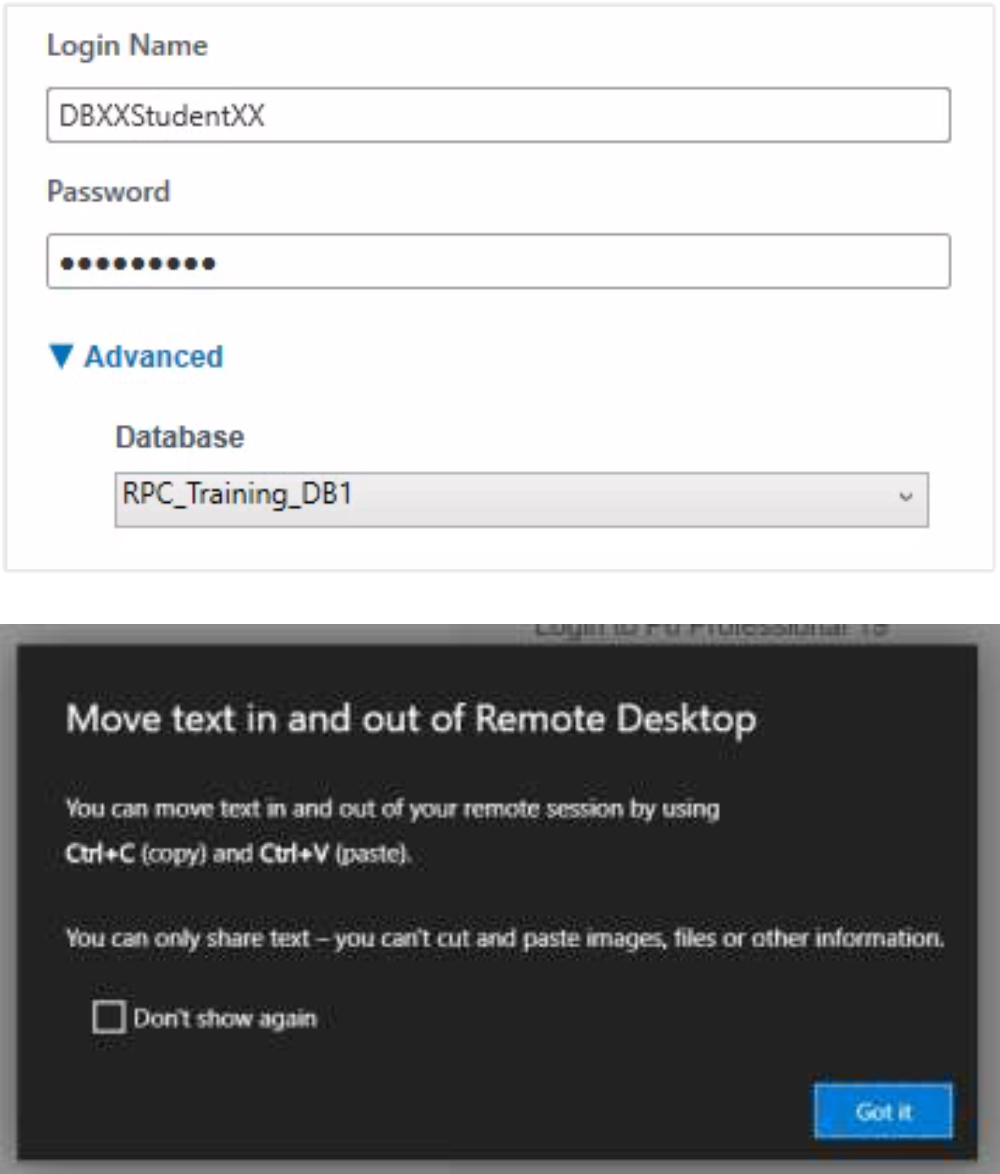
1. Before clicking Connect, click on the >Advanced link to expand and ensure you are connecting to the correct database you have been allocated. For example, if your allocated username is DB01Student03, you would select RPC_Training_DB1 from the dropdown list, as shown here.


2. If you copy and paste your credentials you may receive this notification window.
You can just click on Got It to close this and continue.

02

03

Step 8

1. Click Connect


2. You are now logged in to Primavera P6 Professional and ready to start the course.

04

Hints and Tips

Once logged in to the training environment you can make the application appear full screen. Click once on the double-headed diagonal arrow icon, as show

You can then click on the two arrows, now facing each other, to exit full screen

You can unpin the top toolbar by clicking on the pin icon, as shown

You can also click on the pin to enable the top toolbar to appear again

To come back to the default screen, click on the 3 lines icon at the top of the screen, as shown


We're proud of our accreditations and relationships with our partners